
WordPress
Update WordPress core and plugins safely
Back up the database and files, confirm plugin compatibility and test the journeys customers rely on before updating a live site.
A WordPress update can affect the software that takes bookings, processes orders or sends enquiries. Schedule the change when someone can check those journeys and recover the site if needed.
Before you update
Back up both the site files and its database. Keep a copy you can access if WordPress itself stops loading. Check that you know how to restore it. For a busy shop, plan how you would preserve orders placed after the backup.
Test the change on a copy
Use a staging copy where available. Check the core release notes and whether the active theme and essential plugins support it. Include paid plugins that use a separate update or licence system.
Confirm your recovery point
Note the versions being replaced, the backup time and who can restore it. If your host manages updates, check who is responsible for testing and recovery.
Update WordPress core
Open Dashboard → Updates. Apply the supported update when the backup and compatibility checks are complete. Stay on the update screen until it reports completion.
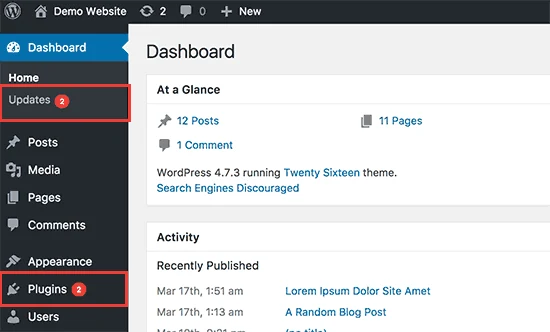
Update the plugins
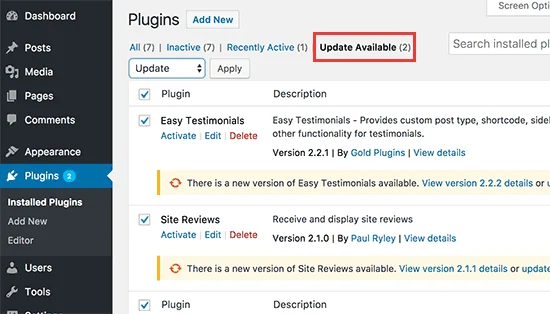
Open Plugins and review the entries with an available update. On a complex site, change one component or a small related group at a time so a failure is easier to isolate.
Check what customers use
Open the homepage and a representative inner page. Test editing, search and forms. For a shop, use a test payment method and check that one order reaches the expected confirmation state. If a change fails, stop further updates and follow the recovery procedure you agreed. A host’s WordPress Toolkit can help where available. If you’re comparing Australian web hosting, ask who owns backups, staging and restores.